Saturday, May 21, 2016

Xiaomi 5V 1.2W Utility LED Light Portable USB Lamp ||http://goo.gl/4a7X7a || 10 Year Unlimited Replacement Warranty || Free Delivery anywhere in Bangladesh || 01756812104


Xiaomi 5V 1.2W Utility LED Light Portable USB Lamp || 2 Year Replacement Warranty || Free Delivery anywhere in Bangladesh || 01756812104

Creative Xiaomi portable LED light USB lamp
The rated voltage is 5V and rated power is 1.2W
Portable and novel design makes it more attractive and convenient to use
Perfect gift for your friends
The gadgets except the LED light are not included

Specifications
General

Color: White, Blue
Specification

Product weight: 0.017 kg 
Package weight: 0.050 kg 
Product size (L x W x H) : 16.9 x 1.8 x 0.9 cm / 6.7 x 0.7 x 0.4 inches 
Package size (L x W x H): 21 x 5 x 2 cm
Package Contents

Package Contents: 1 x Xiaomi Portable LED Light


Sunday, May 15, 2016

How to enable software navigation keys and disable hardware navigation buttons on Any Android device || http://goo.gl/wqkq10 ||


How to enable software navigation keys and disable hardware navigation buttons


 You need:

  • ES File Explorer or Root Explorer
  • Rooted phone
Enable software navigation keys
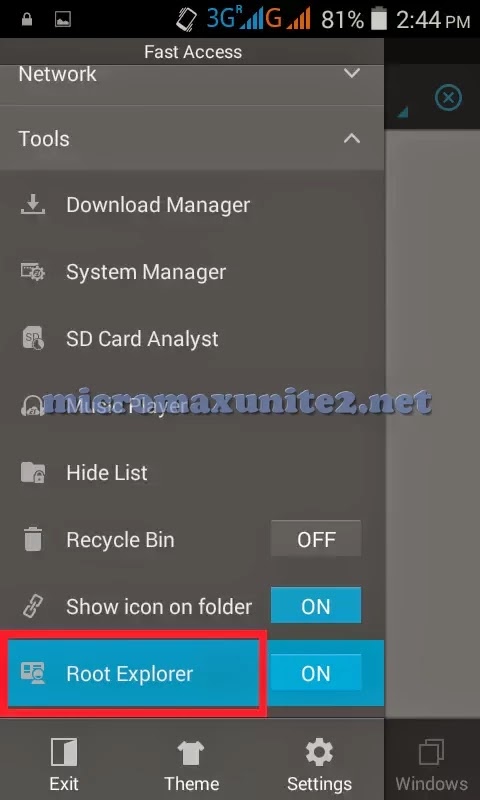
Step 1: Open ES File Explorer and enable Root Explorer from Tools

Step 2: Open  /system folder

Step 3: Mount / and /system folder as Read/Write (RW)


Step 4: Open build.prop in text editor

Step 5: Add line qemu.hw.mainkeys=0 at the end of build.prop and save file

Step 6: Restart phone to enable onscreen navigation keys

How to disable hardware navigation buttons
Step 7: Open /system/usr/keylayout folder


Step 8: Mount / and /system as Read/Write (RW)


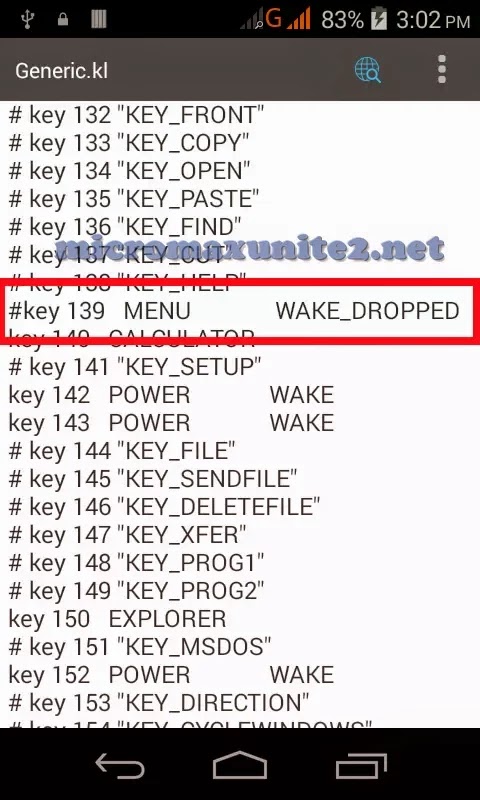
Step 9: Open file Generic.kl in text editor
Step 10: Add # before key 139, key 158, key 172 and save file

Step 11: Restart phone to disable hardware navigation buttons


Thursday, May 12, 2016

Portable Water Filter || Go Water Bottle with Integrated 1000-Liter Life Straw Filter || 01756812104 || http://goo.gl/1gkRLo || Just Call : 01756812104 or SMS me 24/7 ||


LifeStraw Personal Water Filter

Overview:

This unique invention allows you to drink directly from puddles and streams. Youc an also fill the water in your bottle and use the straw to drink from it. When new, the filter membrane is very dry and must be primed before use. Uncap the top and bottom caps and insert the base of the straw into the contaminated water, being careful to keep the mouthpiece dry. Let it sit for 30 seconds to allow water to creep up the membrane, then take 5 quick sucks to get the water flowing. It takes roughly 3-5 seconds of sucking to start the flow of water through the filter when the membrane is dry.
To clean the straw after you are done drinking, blow a breath of air back down into the LifeStraw to purge the remaining water out. Shake it well to remove excess water and recap. If you drink from murky water and the water flow stops, blow back into it to purge the water and mud from the filter.

Cleaning Instructions: 

 When you return home from a hiking trip, drink some tap water with the LifeStraw, purge the filter by blowing back into it, and leave it to dry with the caps off. 

The LifeStraw will not desalinate salt water; remove dissolved chemicals, minerals, or viruses. If drinking from water which may have viruses in it (e.g. contaminated by human sewage), you will need to pre-treat LifeStraw with water treatment tablets. 

Features:

Filters up to 1,000 litres (264 gallons) of water.
Removes 99.9999% of waterborne bacteria (>LOG 6 reduction). These bacteria includes Escherichia coli, Campylobacter,Vibrio cholerae, Pseudomonas aeruginosa, Shigella, Salmonella.
Removes 99.9% of waterborne protozoan parasites (>LOG 3 reduction). These protozoa includes Giardia lamblia ("Beaver Fever"), Cryptosporidium Parvum, Entamoeba histolytica.
Removes turbidity by filtering dirt particles of approximately 0.2 microns.
Is ultra-light; weighs only 2oz!
DOES NOT use iodine or iodinized resin or any chemicals (and is BPA-free).
DOES NOT require any batteries or spare parts.
Gives a very high flow rate.
Gives no after taste (because no iodine or chlorine are used).
Is easy-to-clean and can be stored and used periodically without impacting shelf life.
Is very durable.

LifeStraw for Travel & Backpacking:

Because the LifeStraw is so small and lightweight, it’s great for travel overseas in countries with unreliable drinking water. If you’ve ever been sick while travelling, you know the importance of drinking filtered water! Make sure to drink all water through the LifeStraw.

LifeStraw for Hiking & Camping:

Access to clean water is critical while hiking. LifeStraw accomplishes the same thing as other filters, but does it at just a tenth of the weight. If you’re ultra-light hiking, this is a must. At only 2 oz, it’s the lightest way of filtering water while on the go. If you consume the recommended 3-4 liters of water per day while hiking, LifeStraw will last you for between 250-330 days of hiking. If you’re in a rush, there’s no need to stop and filter water by the lake. Just scoop your water bottle full, and sip from it as you walk. Or, dip the end of the straw right into the lake and drink until you’re hydrated.

LifeStraw removes/filters:

LifeStraw filters down to an incredible, 0.2 microns in size! This removes virtually all the bacteria (99.9999%) and protozoa (99.9%) from contaminated water, and reduces turbidity (muddiness) by filtering out suspended particles.

Bacteria removed include:

Escherichia coli,
Campylobacter,
Vibrio cholerae,
Pseudomonas aeruginosa,
Shigella
Salmonella

Protozoa removed include:

Giardia lamblia ("Beaver Fever")
Cryptosporidium Parvum
Entamoeba histolytica.


Friday, May 6, 2016

Find Your WiFi Dead-spot || WiFi Repeater || WiFi Range Extender || 01756812104


Find Your WiFi Dead-spot With This Apps


Are you experiencing issues with your Wi-Fi? We help you understand why.
Is the problem with your Wi-Fi signal? Or does your ISP have bandwidth issues? Maybe the content provider server is unable to respond to your requests. "Wi-Fi Deadspot" offers you the answer.


 - [Wi-Fi] tab shows the dead spots in your premises where Wi-Fi speeds suffer. 


- [Delay] tab tells you how fast your Wi-Fi modem, Service Provider and Content Provider responds to your requests. 


- [Content] tab performs a Speed Test towards a specific content provider.


Setting Up Mi Repeater with Routers || 01756812104 || http://goo.gl/HjdWv3 ||


Setting Up Mi Repeater with non-Mi Routers


  • Connect the WiFi Repeater to a power source. You can plug it into a USB port on a PC, a power bank or even a USB wall charger. When powered, the repeater’s LED will start blinking in orange color.
  • Download and install the Mi Home app on your Android smartphone.The app is not available on the Play Store so download the APK from HERE  or Click >>   (https://goo.gl/SQE4zvand install it to your Android phone.
  • Launch the Mi Home app and ignore any update notification that pops up. Do not update the app. 
  • Tap on the + (Plus) sign at the top right.


  • Select other smart devices6f5c.
  • At this point, you’ll be asked to login to your Mi account. Sign in if you already have one, else create a new account and sign in.
  • Tap Next on the Find Other smart devices screen.
  • Select the WiFi connection which you want to extend using the repeater and input the password for the same.


  • Wait for Mi Home app to configure the WiFi Repeater to connect and extend your WiFi network. The LED light on the repeater will change from orange to blue indicating a successful setup.
  • If the Mi Home app throws an error during setup but your repeater has a blue LED already, you can simply ignore the error. The repeater will work fine :)
  • The SSID for your extended network would have your original network’s SSID followed by _plus. The password for the network will remain same as your original.